Indexing in Google Search refers to Google storing and organizing the content it has crawled (discovered) from websites, in order to retrieve it for search queries. Google’s index is essentially a massive library of web pages that users can search. If a page isn’t in Google’s index, it won’t appear in Google search results at allahrefs.com.
Crawling vs. Indexing: Google crawls the web using automated bots (Googlebot) to discover new or updated pages. After crawling a page, Google indexes it by processing the content and adding it to its searchable database if it deems the content valuable and suitable. (Not every crawled page is indexed – Google may choose not to index pages that are duplicate, low-quality, or blocked by directives.) In short, crawling is discovery, and indexing is inclusion in Google’s search library.
Why Indexing Matters: Without indexing, your site’s pages have zero chance of appearing in Google’s search resultsahrefs.com. Indexing is a prerequisite for SEO success – it’s the first step in making your content visible to searchers. Once indexed, Google can then consider your pages for ranking in response to relevant queries.
How to Check Indexing Status: To see if Google has indexed your site or a specific page, you can perform a site:yourdomain.com search in Google (for a rough count of indexed pages) or use the URL Inspection tool in Google Search Console for a definitive status. The URL Inspection tool will report “URL is on Google” if a page is indexed, or “URL is not on Google” if it’s notahrefs.comahrefs.com. This tool can also explain why a page isn’t indexed (for example, if it’s blocked by a noindex tag or robots.txt).
Getting Google to index your website involves making it easy for Google to discover, crawl, and process your pages. Here are the key steps to ensure your site gets indexed:
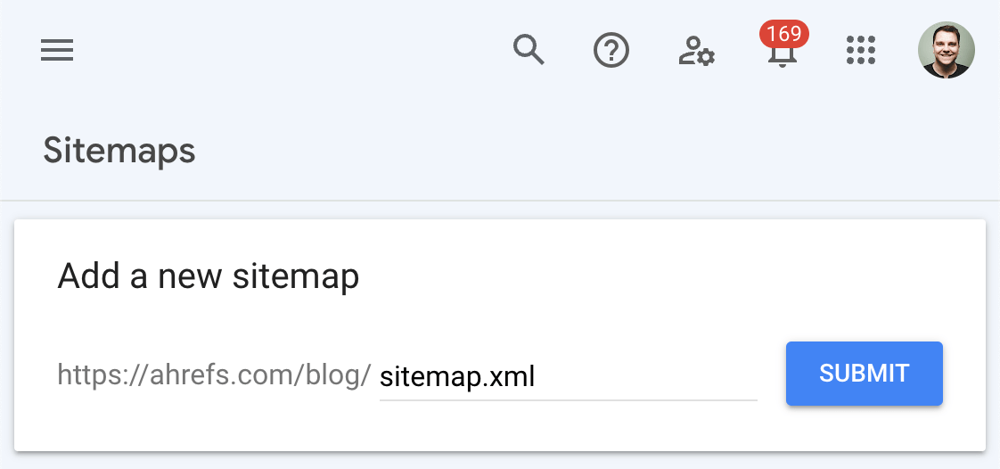
Screenshot of Google Search Console’s Sitemaps tool, showing a field to add a new sitemap URL for submission.
An XML sitemap is a file that lists the important URLs on your website, acting as a roadmap for search engines. Submitting a sitemap helps Google discover your pages more efficiently. Google itself notes that a sitemap is “an important way for Google to discover URLs on your site” – especially useful for new websites or after a major site changedevelopers.google.com.
How to submit a sitemap:
Set up Google Search Console (GSC): If you haven’t already, verify your website in Google Search Console. GSC is a free tool by Google that lets you monitor and manage your site’s presence in Google Search.
Locate or create your sitemap: Many CMS platforms auto-generate sitemaps (commonly at yourdomain.com/sitemap.xml or .../sitemap_index.xml). For example, Wix, Squarespace, and Shopify generate sitemaps by defaultahrefs.com. If you use WordPress, SEO plugins like Yoast or Rank Math can generate an optimized sitemap for youahrefs.com. Make sure your sitemap includes all index-worthy pages and omit pages you don’t want indexed (like admin pages or duplicate content).
Submit in GSC: In Search Console, navigate to the “Sitemaps” section. Enter your sitemap’s URL (e.g. https://yourdomain.com/sitemap.xml) into the “Add a new sitemap” field and hit Submitahrefs.com. Google will fetch the sitemap and start processing the listed URLs. (Note: Including the sitemap URL in your robots.txt file is also a good practice, but submitting via GSC ensures Google sees it quickly.)
Keep in mind that submitting a sitemap doesn’t guarantee indexing of every page, but it greatly aids discovery. Google will still decide whether to index each page based on its content and qualitydevelopers.google.comdevelopers.google.com. However, a sitemap submission is the best first step to alert Google to your site’s pages in bulk.
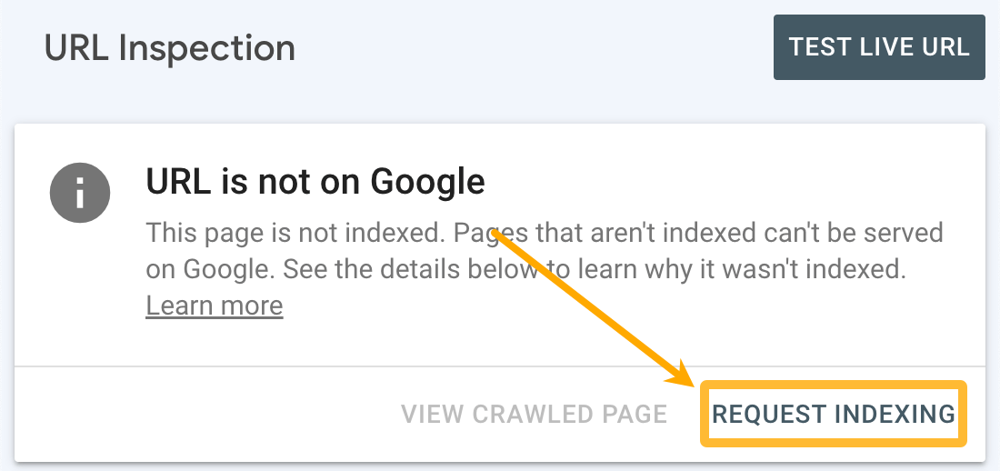
Screenshot of Google Search Console’s URL Inspection tool for a page that is not indexed, with an option to “Request Indexing.”
For individual pages, especially new or recently updated ones, you can request indexing through GSC’s URL Inspection tool. This is useful to speed up the indexing of a specific page (like a freshly published blog post or a page that was fixed after an error). Google allows you to manually submit URLs for crawling:
Inspect the URL in GSC: Enter the page’s URL in the URL Inspection tool. It will tell you whether the page is indexed or not.
Request Indexing: If the page is not indexed (or you have updated it significantly), click the “Request Indexing” button. Google will then attempt to crawl the page promptly and re-evaluate it for indexingahrefs.com.
Google advises that you must be a verified site owner in Search Console to use this featuredevelopers.google.com. There is also a quota for how many URLs you can request per day, and requesting the same URL multiple times won’t speed up the processdevelopers.google.com. In other words, use this tool judiciously for important pages, and be patient after submitting – crawling and indexing can still take a little time.
Note: Crawling and indexing are not instantaneous. Google states that “crawling can take anywhere from a few days to a few weeks”, and requesting a crawl “does not guarantee that inclusion in search results will happen instantly or even at all.” Google’s systems prioritize indexing high-quality, useful contentdevelopers.google.com. So, while the URL Inspection tool can prompt Google, ultimately your page needs to meet Google’s criteria to get indexed.
The robots.txt file is a simple text file placed at the root of your site (e.g. yourdomain.com/robots.txt) that tells search engine crawlers which parts of your site can or cannot be crawled. Optimizing this file is crucial: you want to allow Google to crawl your important pages freely, while perhaps disallowing sections of your site that are not useful for indexing.
Key points for robots.txt:
Ensure important content is not blocked: By default, Googlebot will crawl any page it finds, unless your site’s robots.txt or meta tags tell it otherwise. A common mistake is accidentally blocking Google from crawling your whole site or key sections. For example, a misconfigured robots.txt could disallow all content (Disallow: /), which would prevent indexing entirely. Always double-check that none of the pages you want indexed are disallowed in robots.txt. Google’s own troubleshooting guides note that some sites fail to get indexed because they’re “explicitly blocking crawling or indexing” through robots.txt or meta tagsdevelopers.google.com.
Disallow irrelevant or duplicate pages: It may sound counterintuitive, but a good robots.txt can improve indexing by excluding low-value pages. By blocking crawl of unimportant pages (login pages, admin panels, certain filters or duplicate page variations), you help Google focus its crawl budget on the pages that matter to youahrefs.com. For instance, you might disallow crawling of session URLs, faceted search parameters, or “Thank you” pages that don’t need to appear in search. This prevents index bloat and ensures Google isn’t wasting time on pages that wouldn’t benefit your SEOahrefs.comahrefs.com.
Include your sitemap URL: It’s a best practice to list your sitemap’s URL at the end of the robots.txt file using the Sitemap: directive. This is an additional hint to crawlers about where to find your sitemap (in case you didn’t submit it via Search Console or for other search engines).
Creating the file: If you don’t have a robots.txt, you can create one with a plain text editor. A simple example might be:
User-agent: *
Disallow: /wp-admin/    (for a WordPress site, as an example of blocking admin section)
Allow: /wp-admin/admin-ajax.php   (allow necessary files if needed)

Sitemap: https://yourdomain.com/sitemap.xml