Navigate to https://yourdomain.com/wp-admin and enter your credentials to access the dashboard.
 Step 2: Navigate to the Plugins Section
In the left-hand sidebar, hover over Plugins and click on Add Plugin.

Step 3: Click on "Upload Plugin"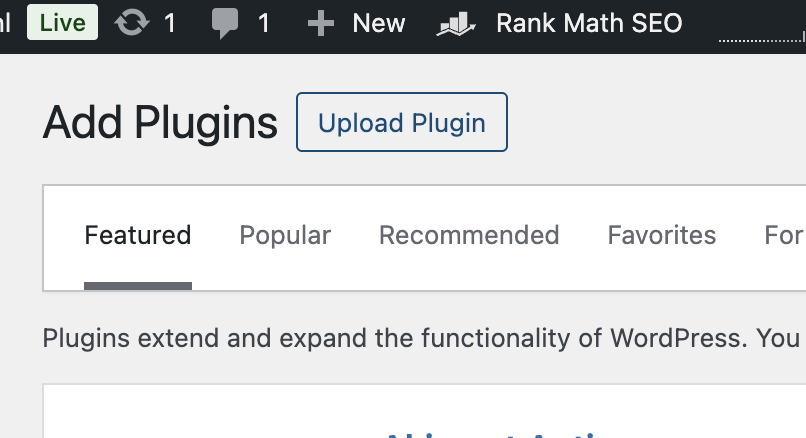
At the top of the page, click the Upload Plugin button.
Step 4: Choose and Upload Your Plugin ZIP FileYou have received a plugin as a .zip file in your mailbox.
Please follow these steps:
Download the ZIP File: Click on the attachment in the email to download the plugin file to your computer.
Do Not Unzip: Ensure you save the file exactly as received—do not open or extract the contents of the ZIP file.
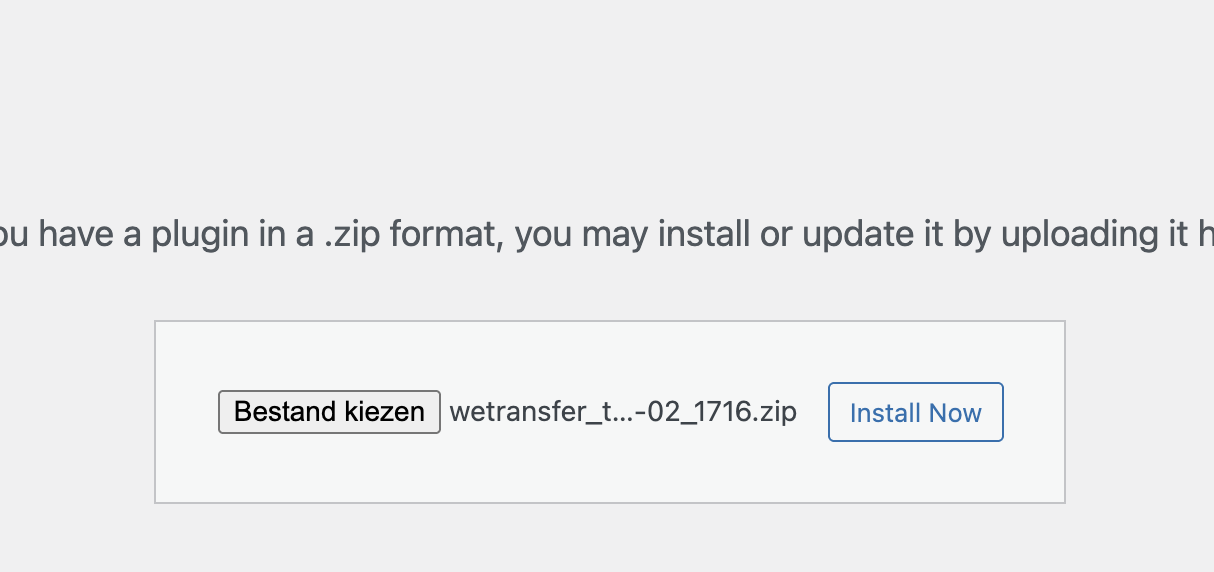
Click Choose File, select the plugin .zip file from your computer, and then click Install Now.
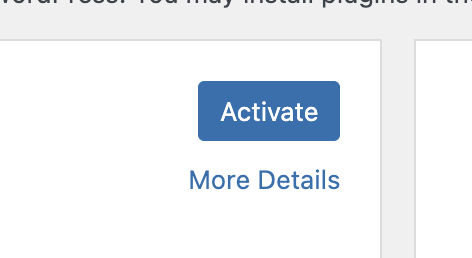
Step 5: Activate the PluginOnce the installation is complete, click Activate Plugin to enable it on your website.
Go to your plugins and activate the Opvius plugin to connect your store.
 Success!
Your plugin is now installed and activated. You can configure its settings by navigating to the Plugins section or the specific settings page added by the plugin.