Activating the Opvius plugin in Shopify is quick and easy. Follow these straightforward steps:
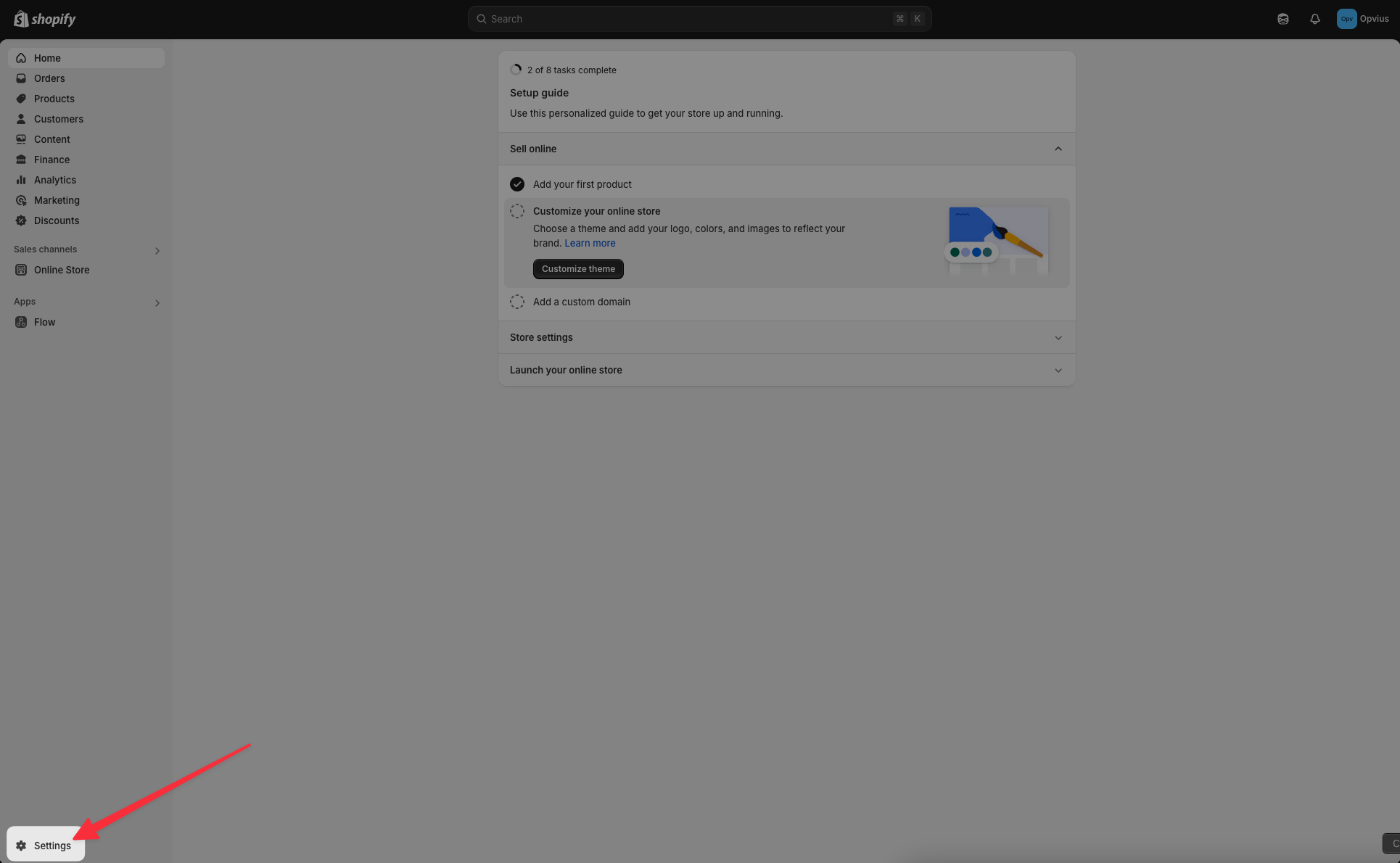
First, log in to your Shopify admin dashboard. In the bottom-left corner, click on Settings.
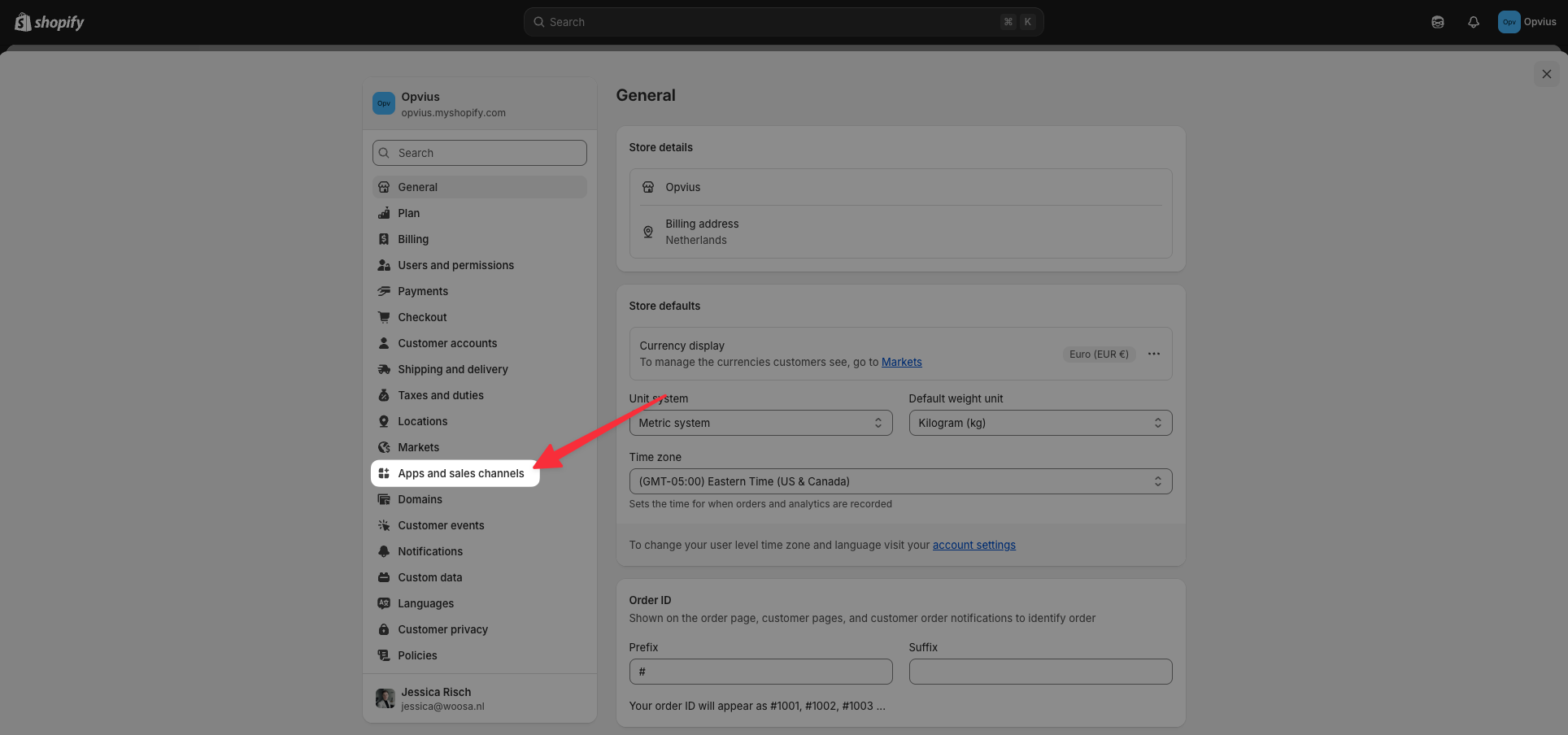
In the Settings menu, select Apps and sales channels.
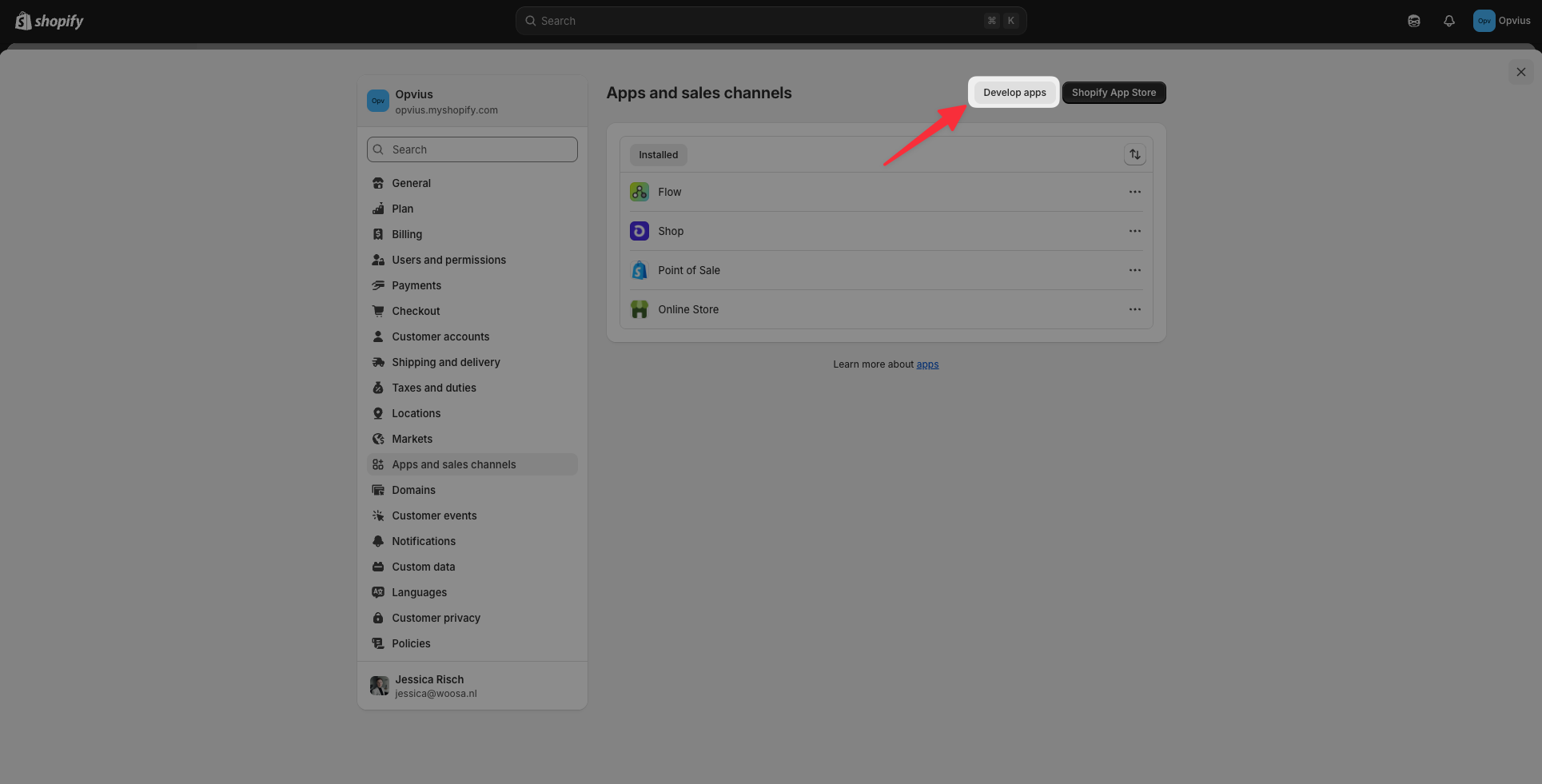
Next, at the top right of the screen, click the Develop apps button.
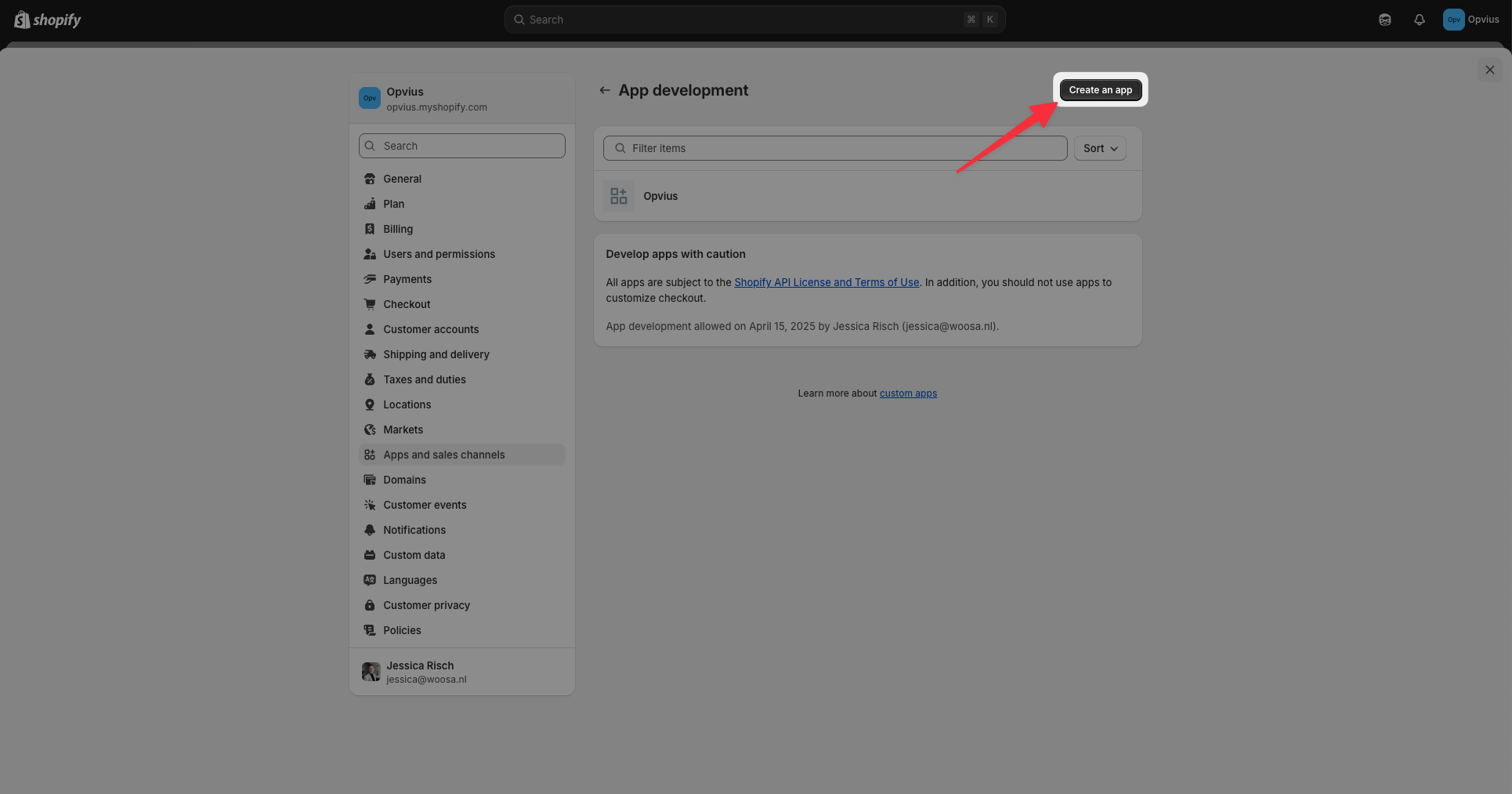
Now, click on Create an app to set up Opvius in your store.
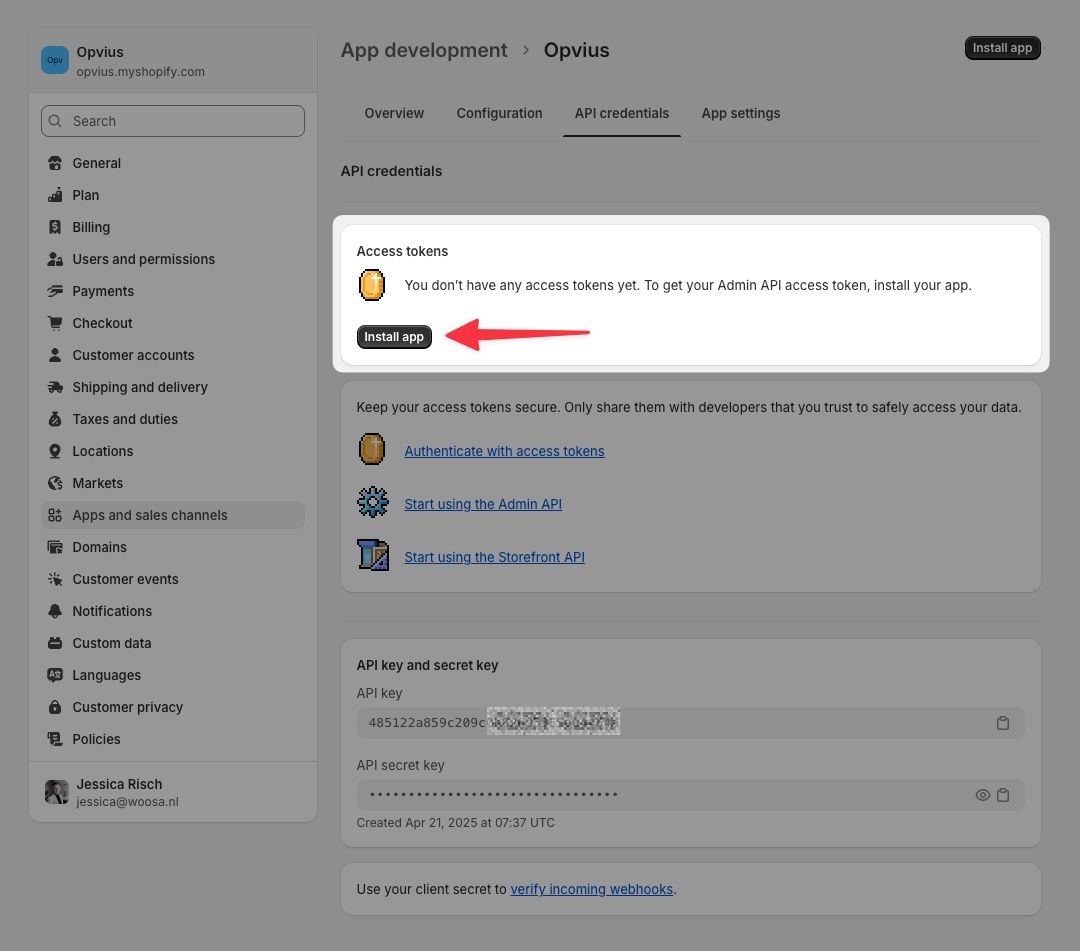
Name your new app "Opvius" or another identifiable name, then click Create app.
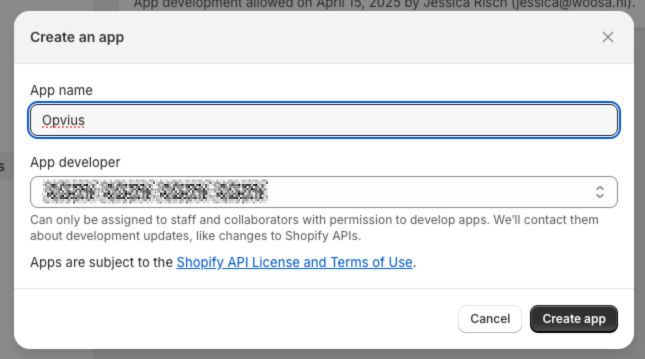
Under the Overview tab, click Configure Admin API scopes to set necessary permissions.
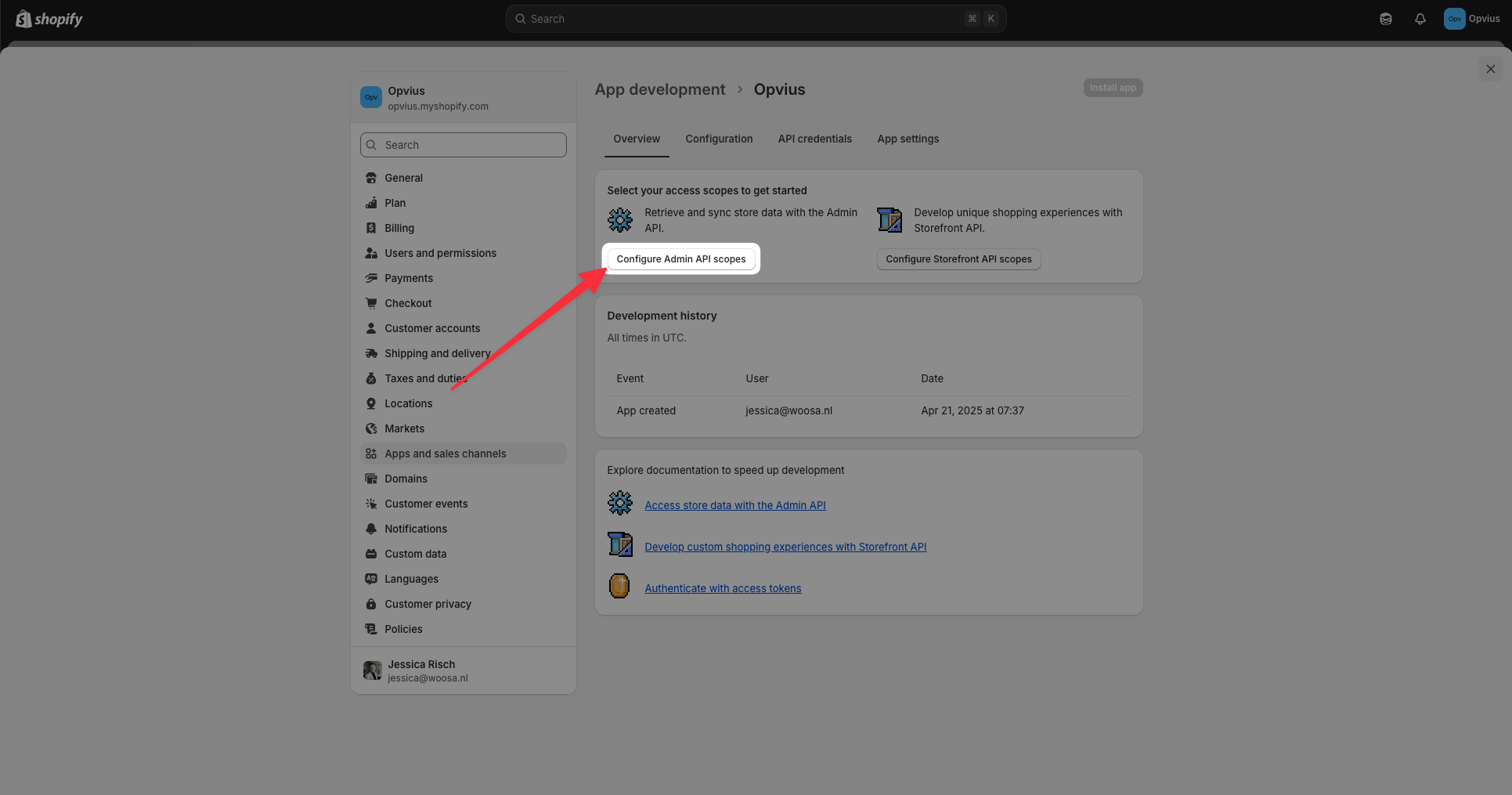
Search for "product" and ensure you check these permissions:
write_product_listings
read_product_listings
write_products
read_products
Click Save when done.
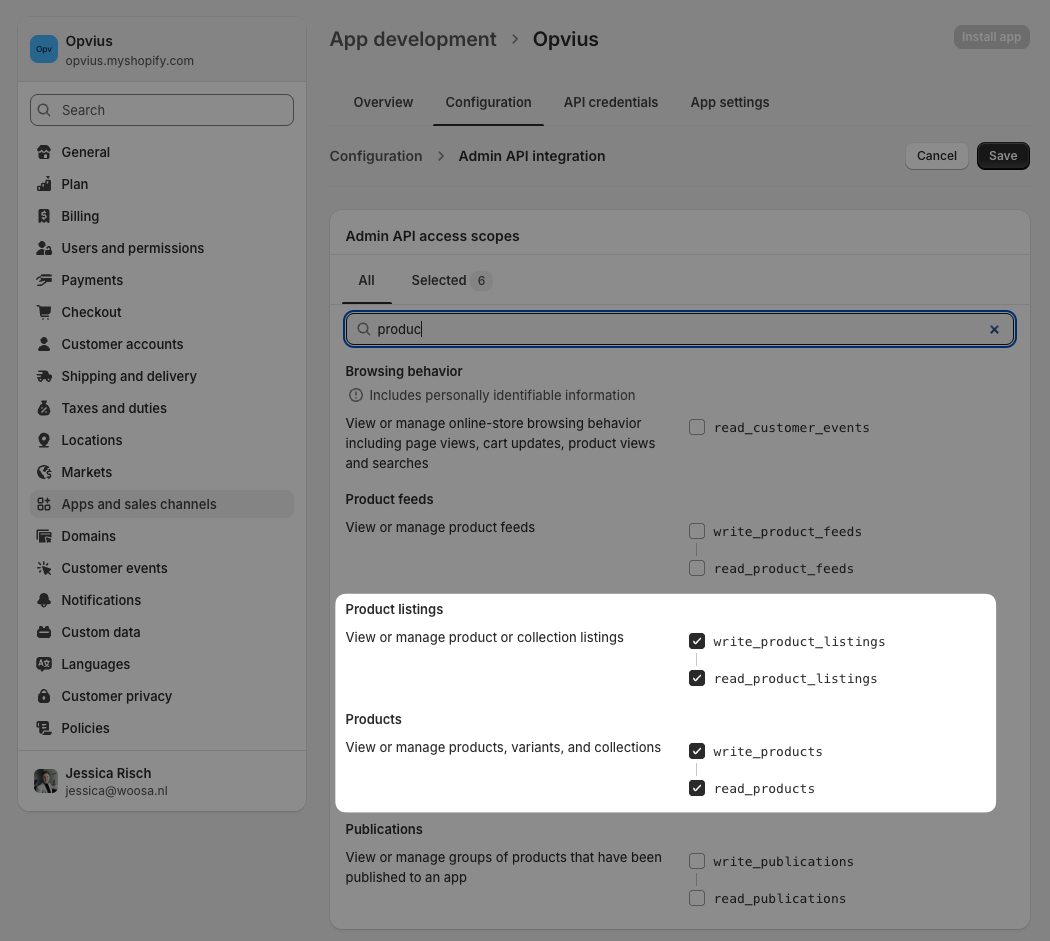
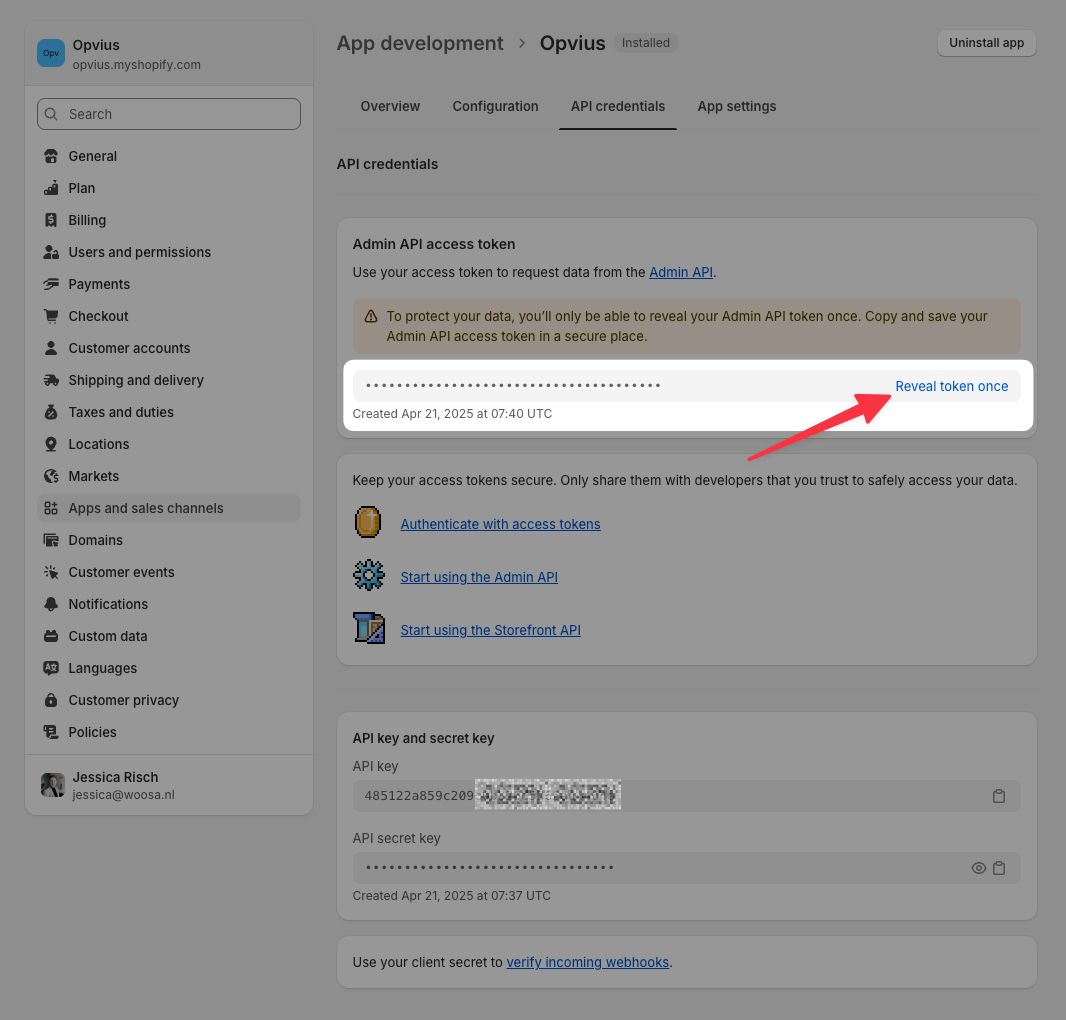
Navigate to the API credentials tab at the top.

Click on Install app to finalize the installation.
Finally, click Reveal token once and safely copy your access token. Store it securely—this will be needed to connect Opvius to your Shopify store.
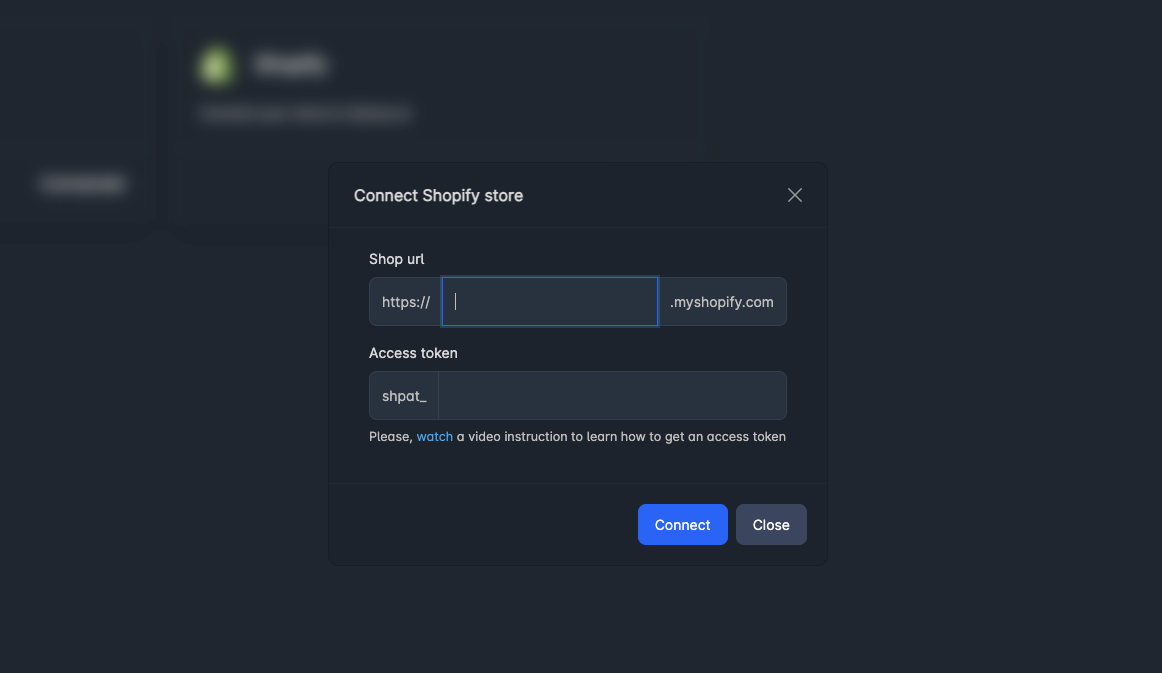
Your Opvius plugin is now successfully added to your Shopify store!
If you encounter any issues or have further questions, reach out to our support team—we’re here to help!